The Tax Calculator is used to test transactions and provide quoting results in real time.
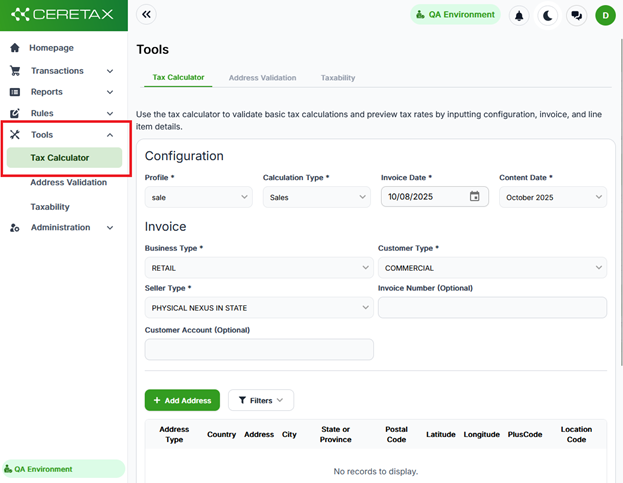
Once logged into CereTax, navigate to Tools > Tax Calculator
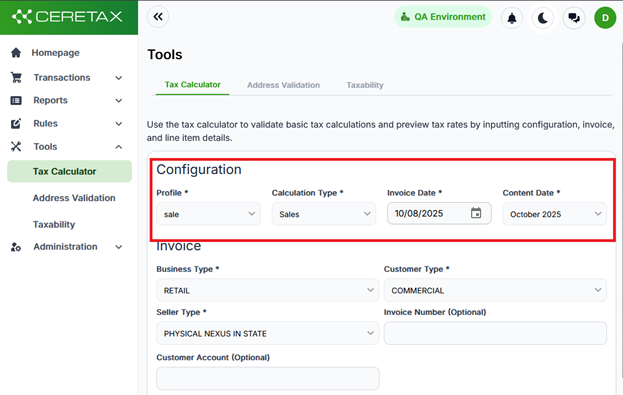
Tax Calculator configuration section
The configuration section is for information related to sales profile, calculation type, and date information related to an invoice or transaction. Users can provide data for following fields, required fields are labeled with an asterisk
Profile - Select the Profile you want to run a tax calculation for
If there is only one Profile in your CereTax account, this should already be displayed as the default
Calculation Type - Sales (to calculate sales tax) or Purchase (to calculate use tax)
Content Date - The month you want to run a tax calculation for
The Content Date will default to the most recent Content period
To run a transaction for a prior period, select an option from the drop-down
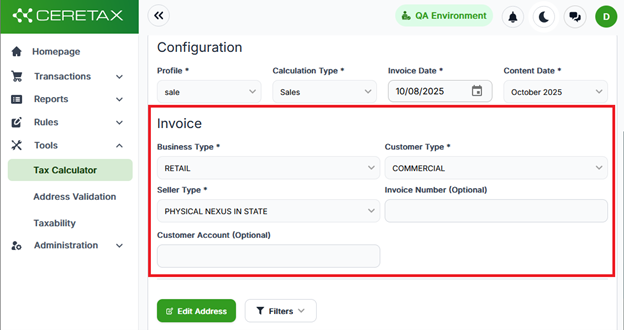
Invoice Values
Populate the following required fields, as indicated by an asterisk:
Business Type - Select the type of buisness you are engaged in
RETAIL is the default value, if this is not the appropriate option for your business, select an alternative from the drop down
Customer Type - Select the type of customer you are selling to
COMMERCIAL is the default value, if this is not the appropriate option, select an alternative from the drop down
Seller Type - PHYSICAL NEXUS IN STATE is the default value
If your Business is reigistered as a Remote Seller in Alabama and/or Texas, select the REMOTE SELLER, option from the drop-down. This will return the fixed Remote Seller rates for these states
If your Business is registered as a Direct Marketer in Louisiana, select the DIRECT MAKRKETER option from the drop-down. This will return the fixed Direct Marketer rate
Invoice Number (Optional)
This is an optional field to set the invoice number
Customer Account (Optional)
This is an optional field to set the customer account
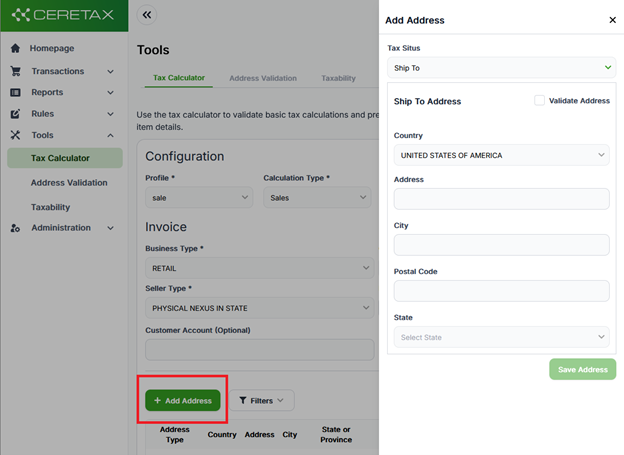
Address Details
Select Add Addresses to display the add address panel
Select a Tax Situs option from the drop-down
Depending on your Profile type, different options may be available
Make sure to populate all required fields, as indcated by an asterisk
Note: address fields become required when the validate address option is enabled
Click Save address once all desired elements have been entered
Line Items
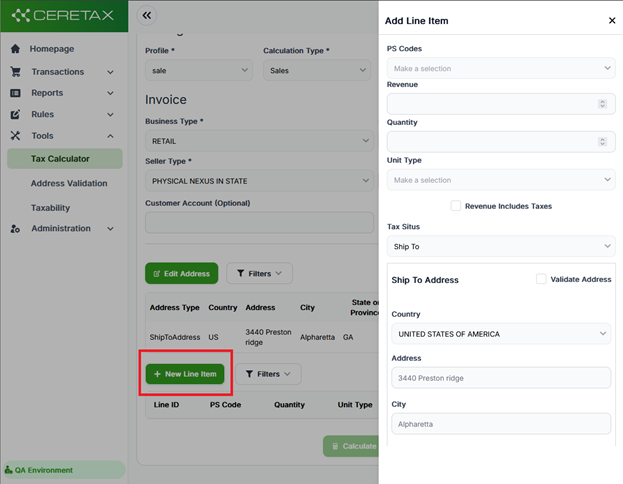
Select New Line Item
Select a PS Code option from the drop down
This is a searchable field, you can enter the numerical PS Code value or search for key words in the PS Code description
Enter a Revenue Account
This can be a positive negative value
Enter a value for the Quantity
CereTax does not perform any calculation based on Revenue x Quantity
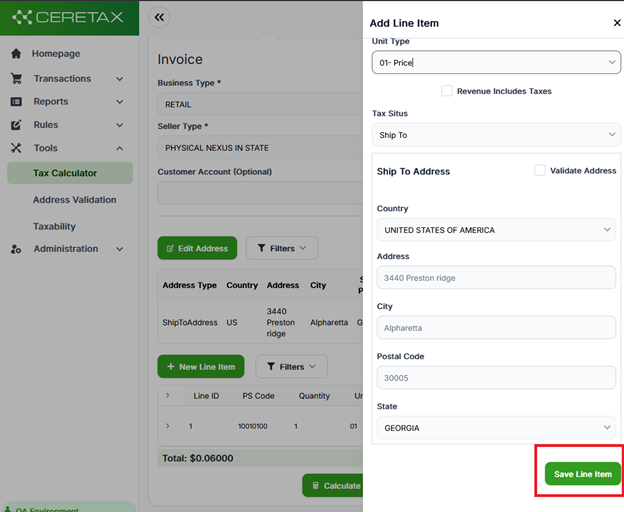
Select a value from the Unit Type drop down
The Tax Situs and Address fields should be populated as previously entered in the Address Details section
Click Save Line Item
If you are adding multiple line items, repeat the steps above until all line items have been added
Once all Line Items have been added, click Calculate Tax at the bottom of the page
Tax Details
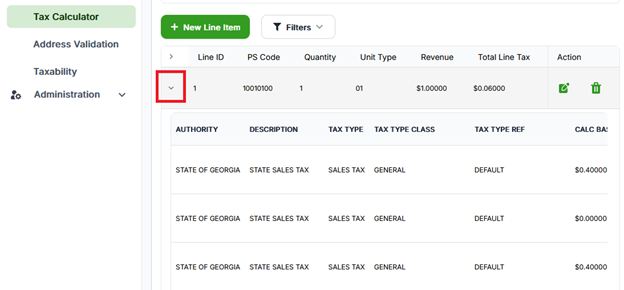
Select the down arrow at the far-left of the table to view the details of the tax calculation
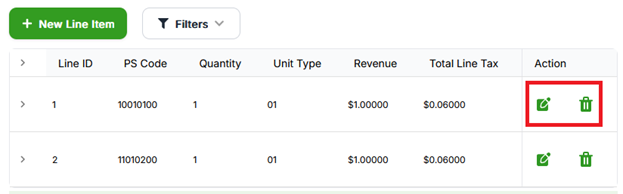
You can edit or delete line items by clicking on the edit or delete icons on the right side of the table.
At the bottom of the page you can find the Reset Tax Calculator button which can be selected to completely reset the line items
Transactions process using the Tax Calculator will also show up in the Transactions > Sales screen in a Quote status