Portal 2.0: Transaction Detail

Utilizing the Transactions Screen


Once you’ve successfully connected your system to CereTax, transactions you’ve processed from your system can be located under Transactions > Sales. The transactions screen can be further customized to add or remove columns of data by clicking on the Select columns menu above the header row, then selecting the Columns you want to hide. The available data columns can then be selected or de-selected for your needs. Along the bottom of the screen are additional navigation items, including Refresh and Filter.

Every transaction processed through CereTax is assigned a unique KSUID. The value in the KSUID field is automatically generated by CereTax and cannot be customized. If the System Trace Audit Number was not provided from your system, the value will be the same as the KSUID field.

Transactions that are processed numerous times will result in multiple transactions with the same Invoice Number and can be differentiated by the unique KSUID. There could also be multiple transactions in different statuses. (Please see section Transaction Statuses below for more information.) The value in the Status column should be used to determine the status of the transaction.

Searching for Transactions

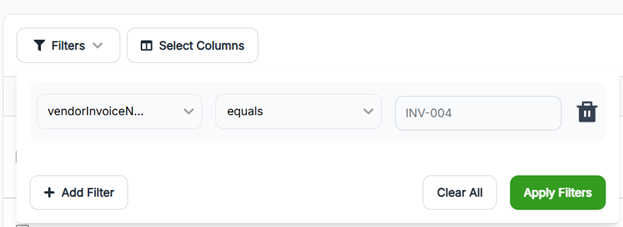
To quickly search for a specific transaction, the filter function above the header row can be used to search for or refine the data you want to view:
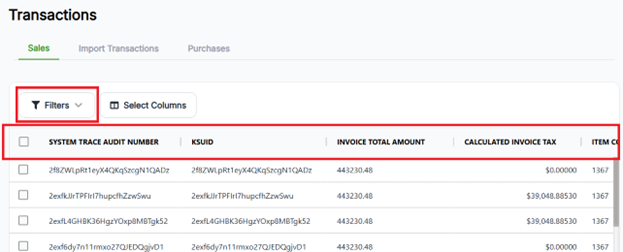
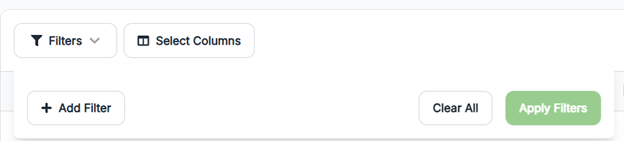
  • Click on the Filters button
  • Click Add Filter
    • Select the search field to filter in the first drop down
    • Condition - Available values depend on what is selected as the filter field
    • Value - Dependent on previously selected values
  • If required, additional filter parameters can be added to further refine your search by selecting Add Filter again
  • Once complete, click Apply filters

In these examples:

  • The filter will return Vendor Invoice Number INV-004

Transaction Navigation and Troubleshooting

Once the transaction(s) you would like to view have been found, transaction detail lines can be viewed by clicking on the transaction row and navigating to the transaction detail page.
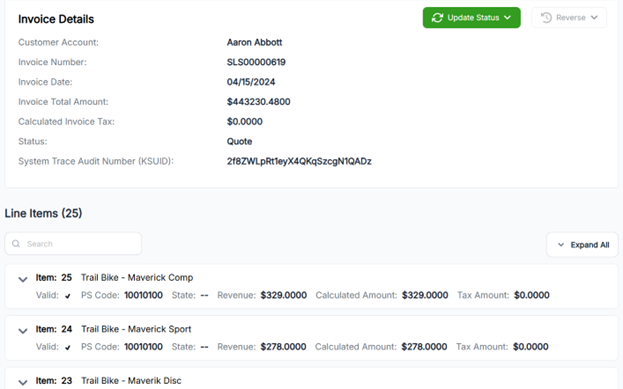
Details for each line item can be viewed by clicking on the down arrow of each line item on the bottom of the detail page. When you expand the view, you will find tabs for each type of invoice data available.
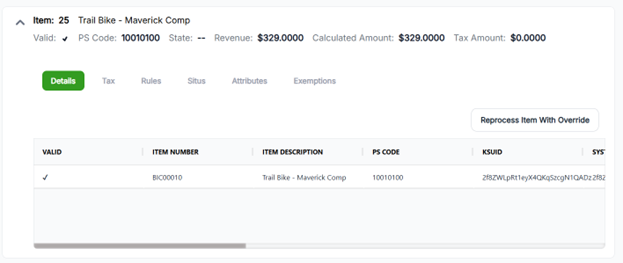
  • Tax
    • Provides detailed information on tax calculation including jurisdictions and rates applied
  • Rules
    • Lists the rules that applied to that line
      • If a rule was created but does not appear on the list as expected, check that your Rule Type was set up correctly, the Rule Level may need to be changed
    • Global Sales Internal Field and TaxOnTaxMax are default internal values
  • Situs
    • Lists the address(es) used for Calculation
  • Attributes
    • List the attributes that were included for calculation
    • Refer to the integrations page for guidance specific to your integration
    • IF guiance for yoru integration is not available, or additional attributes need to be set up for your custom API connection, please ocntact support@ceretax.com for next steps
  • Exemptions
    • Provides jurisdiction and tax type exempted for exemtpions applied
    • Exemptiosn can be sent from your system or managed in CereTax
      • If exemptions are being managed in CereTax, the Rules Icon will show any exemption rules that were applied

Transaction Statuses

The transaction statuses you see within CereTax are typically initiated from your system. Status changes made in CereTax will not affect or update the transaction in your system. For best practices, we recommend processing changes or updates in your system; this will allow CereTax to be automatically updated with the appropriate transaction information and status.

Transactions can be in one of the following statuses:

  • Once a transaction has been created in CereTax, it can either be in an Active or Quote status, depending on your integration or how your API connection is customized
    • Quote
      • Quote transactions are for the purpose of estimating tax only
      • These transactions are temporary, the status cannot be updated or changed
      • Once the Quote is finalized in your system, a new transaction is created in CereTax with a Posted status
      • Transactions processed with the Tax Calculator will appear in this status
    • Active
      • The details of the transaction have not been finalized
      • Once deatils are finalized, the status is automatically updated to Posted
    • Posted
      • Details of the transaction have been finalized
    • Suspended
      • The transaction in your system was either voided, cancelled, or deleted
    • Pending
      • The transaction contained one or more line-item issues that must be resolved before the transaction can be re-processed
        • If the transaction was created from your system, refer to the CereTax logs for additional information
        • If the transaction was manually imported into CereTax, refer to the system generated error file under Transactions > Import Transactions
      • Once the errors are resolved and re-processed, a new transaction will be created
      • Pending status transactions are not temporary and will remain in your CereTax account

Changing the Transaction Status

If needed, the transaction status can be updated in CereTax.

Please note, changes made in CereTax will not update the transaction in your system. If needed, a document may need to be made in your system to reflect the changes you’ve made in CereTax.

Changing status from the transaction table
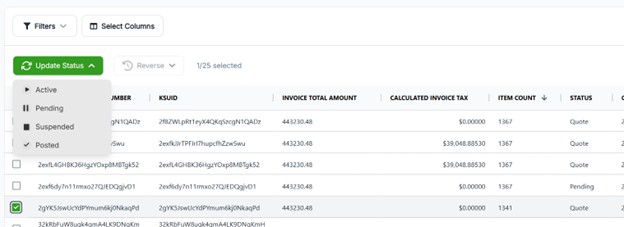
  • By checking one or multiple records you will be presented with a new menu where you can update the status.

Changing status from transaction details

  • By checking the update status button on the right-hand side of the screen an Update Status menu will appear:

Expanding the Update Status menu, the allowable options will be active for selection depending on the status of the transaction.

This transaction is in an Active status, the options available for this transaction are either Suspended or Posted.
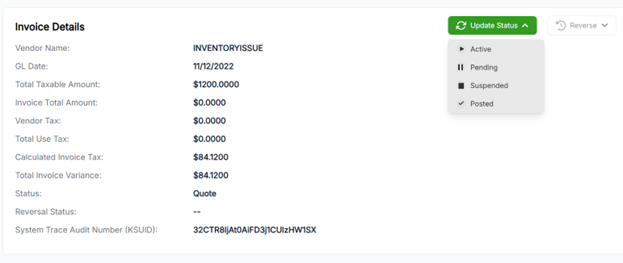
This transaction is a Posted status. Because transactions in a Posted status are intended to be the finalized invoice, there are no options to change the status. However, you’ll notice that the Reverse option is green, indicating that option is active.
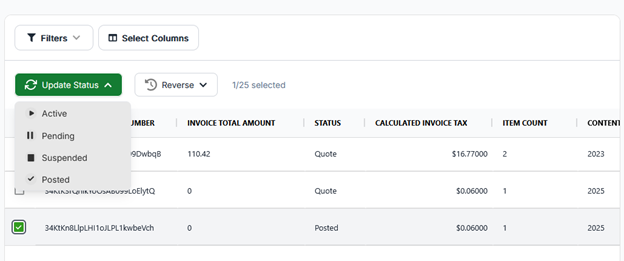
Under the Reverse menu:
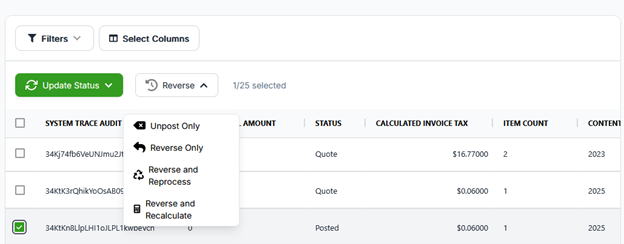
  • Unpost Only will update the transaction status to Suspended
  • Reverse Only will keep the original transaction as is and create a corresponding negative transaction to offset the original transaction
  • Reverse and Reprocess is intended for our use for our Purchase customers  

No items found.