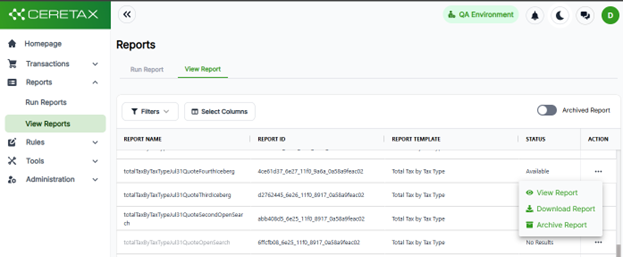
Reports Overview
CereTax has reports to meet your businesses' compliance, audit, and ad hoc reporting requirements. Reports can be created, viewed, downloaded, and archived from the Reports page of the CereTax portal.
Creating Reports
To run a report in the CereTax portal, follow the steps below.
1. From the left-side navigation pane in the CereTax portal, expand the Run Reports menu
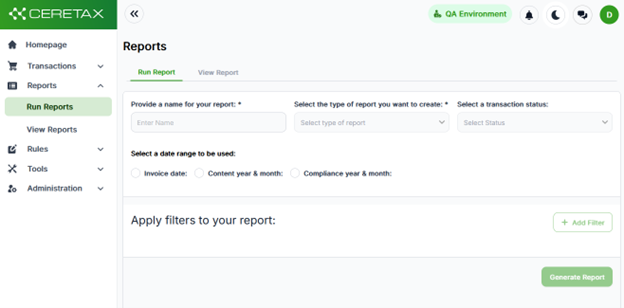
2. Fill out the following fields on the Generate Report form.
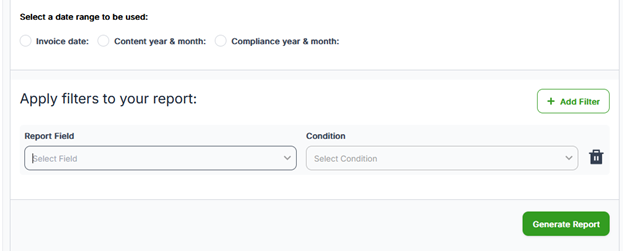
3. Add any necessary optional filters by selecting "Add filter" under the Apply filters to your report section of the form. Each filter you add requires a condition and value.
4. After completing all required fields, the Generate Report button will enable. Click Generate Report to initiate your report.
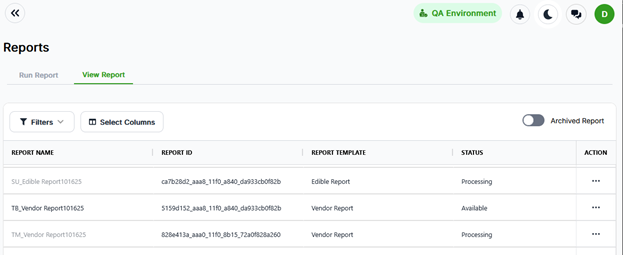
5. After initiating the report, you will be navigated to the view Reports page. When your report's status is Available, the report can be viewed by clicking on the report name, or downloaded by clicking on the download icon.
Viewing & Downloading Reports
When your report is Available, it can be viewed in theCereTax portal or downloaded to a CSV and XLSX file.
To view your report in the CereTax portal, do thefollowing:
1. Click on the report name on the reports page or the viewicon on the row of the report you wish to view.
2. The select report will open in a separate tab where youcan view, sort, and filter your report data.
To download your report in the CereTax portal, do the following:
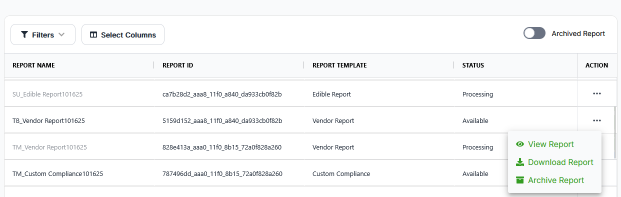
1. Click the … menu found in the right hand action column and select the download option of the report, select the file format, and click Confirm.
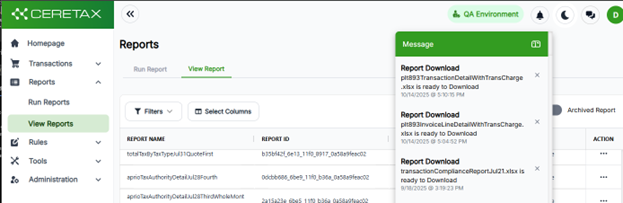
2. When the report file is ready to download, the mailbox at the top right corner of the screen will update with an unread message indicator. Click on the mailbox and select the message for your report.
3. On the messages screen, click the … button in the action column, then select download. The download will initiate immediately.
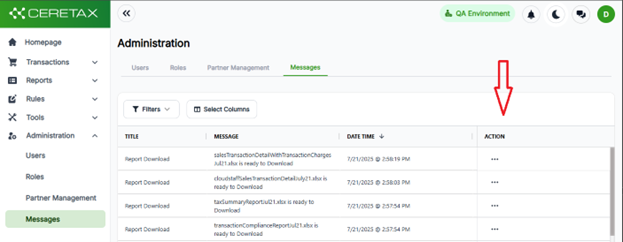
The menu provides the option to Download or delete the report.

Archiving Reports
If you no longer need a previously run report, you canarchive it. To archive a report, do the following:
1. Click on the … button in the action column on the row of the report you wish to archive and
2. Confirm you want to archive the report when prompted.