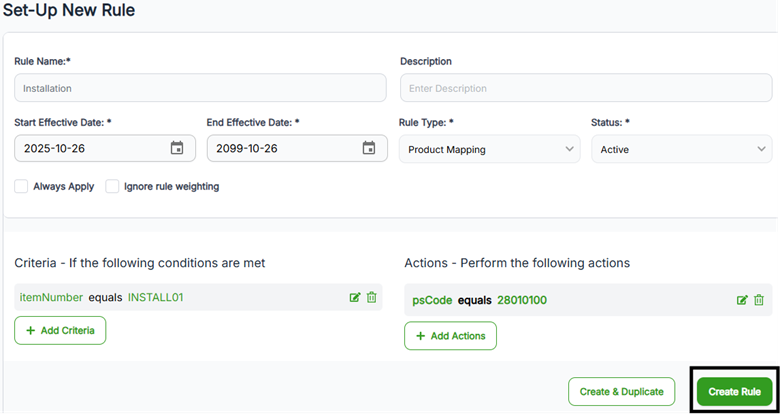
How to Set-Up Product Mappings
In order to properly calculate tax on your business’s products and services, they must be mapped to a CereTax taxability category (psCode). Product mappings can be managed in either your billing or e-commerce platform or configured within CereTax. To configure product mappings within CereTax, follow the steps below.
Create the Rule Type
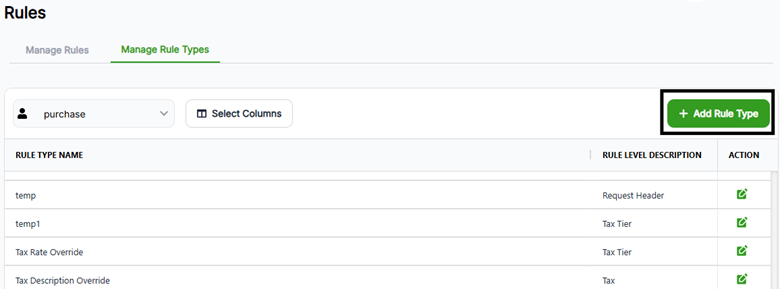
1. Once logged into CereTax, navigate to Rules > Manage Rule Types
2. Select the Profile that this Rule Type is for. If there is only one Profile, this should already be displayed as the default
3. Click + Add Rule Type
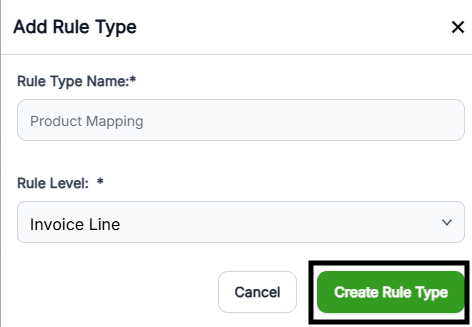
4. Enter the Rule Type Name
5. Select the Rule Level. For this type of configuration, the Rule Level will be Invoice Line
6. Click Create Rule Type
If there are multiple Profiles within your CereTax account and this Rule Type is needed for each Profile, complete these steps foreach Profile.
Set the Criteria and Action Elements
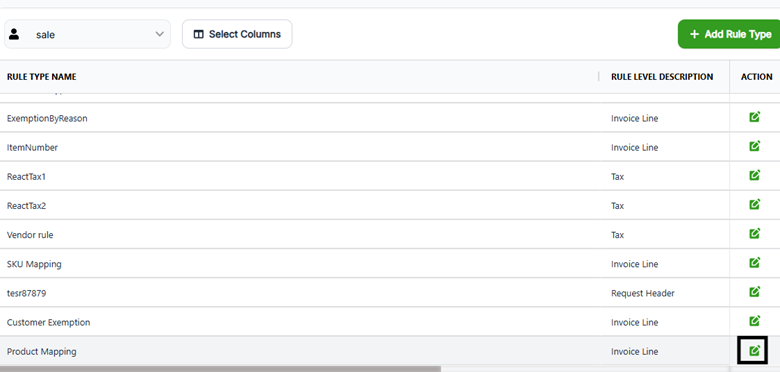
1. Click the Edit icon next to the newly created Rule Type
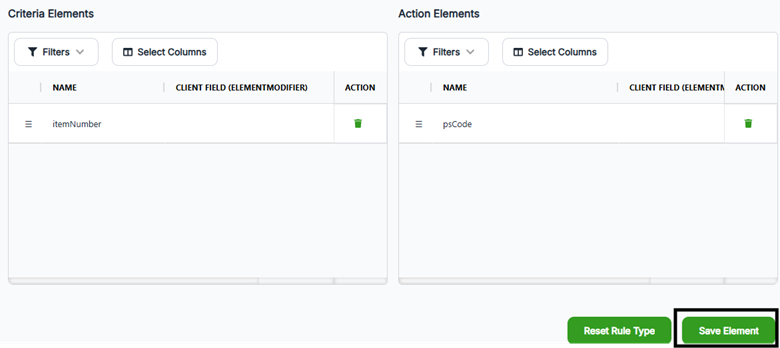
2. Set the Criteria element as Item Number by dragging the itemNumber field to the Criteria Element Table
3. Set the Action element as psCode by dragging the psCode field to the Action Element Table
4. Click Save Elements
Create the Rule
1. Navigate to Rules > Manage Rules
2. Select the Profile that this Rule Type is for. If there is only one Profile, this should already be displayed as the default.
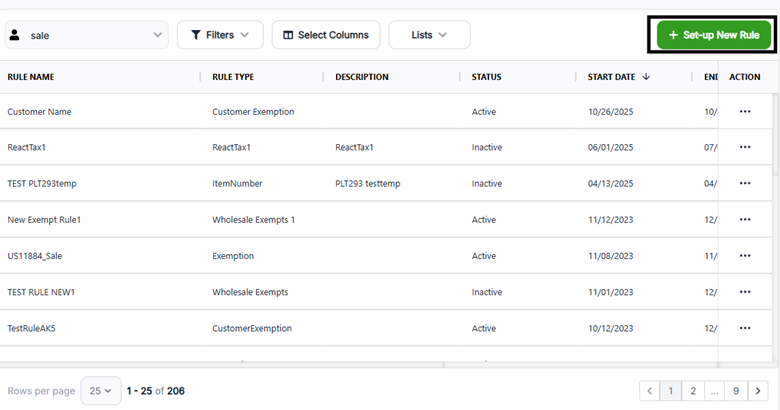
3. Click Set-up New Rule
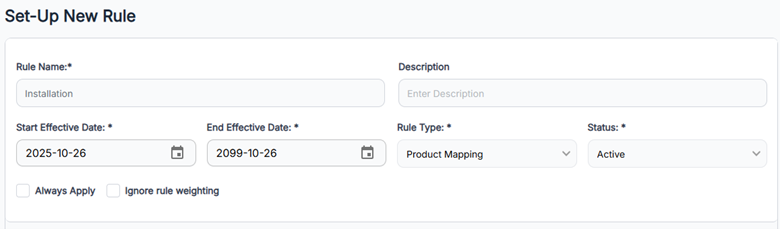
4. Fill out the following fields on the Create Rule form:
Add the Criteria Elements
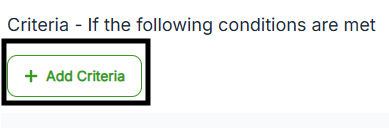
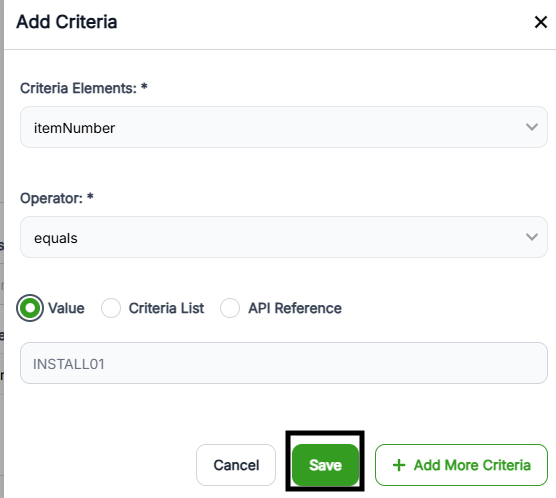
1. Click + Add criteria
2. Fill out the following fields on the Add Criteria form:
3. Click Add Criteria
Add the Action Elements
1. Click + Add action
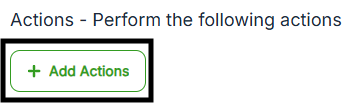
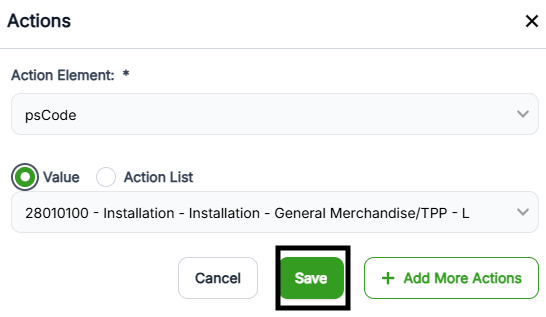
2. Fill out the following fields on the Add Action form:
3. Click Add Action
Save the Rule
1. Once returned to the Create Rule screen, click Create Rule.