
How to Create a Rule
You may have ules configured in CereTax that are driven off of a List. A Rule List allows you to create one rule that includes many values. For example, Rule Lists are often used for configuring Nexus in CereTax.
Please note: The Rule that is configured to use the updated List will still be driven off of the Start and End Effective Dates of the configured Rule. If you do not want your List modifications to use the existing Start and End Effective Dates, then a new Rule (and possibly Rule List) will need to be created.
When an update needs to be made to an existing Rule List, follow the steps below:
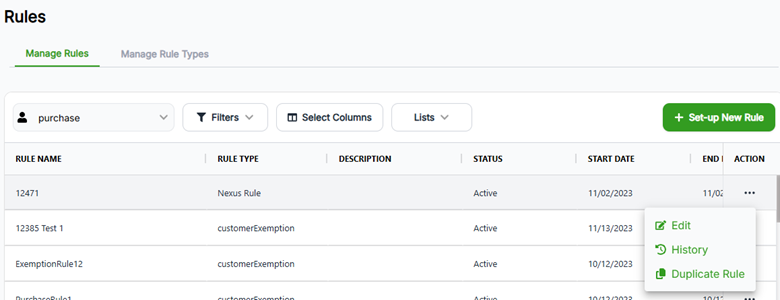
1. Navigate to Rules > Manage Rules
2. Select Actions > … button > Edit button
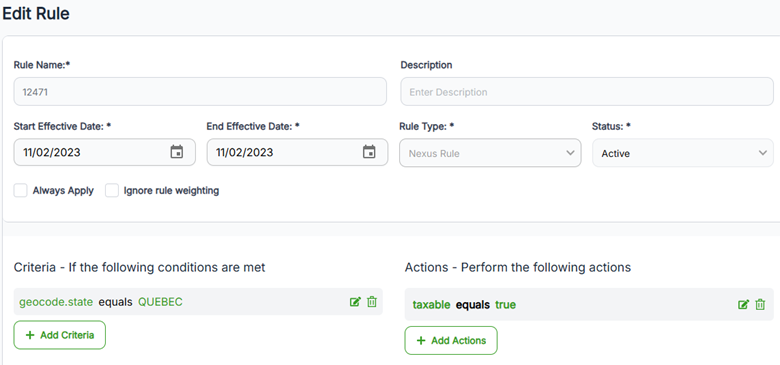
3. Select the Edit icon (pencil and paper) next to the desired list
4. To add a new row
5. To delete an existing row
6. Once all updates are made, click update rule
7. Once returned to the main Rules screen, click Actions > Sync Rules to fully save
For new rules
1. Navigate to Rules > Manage Rules
2. Select Set-up new rule button
3. Enter required information
4. To add a new row
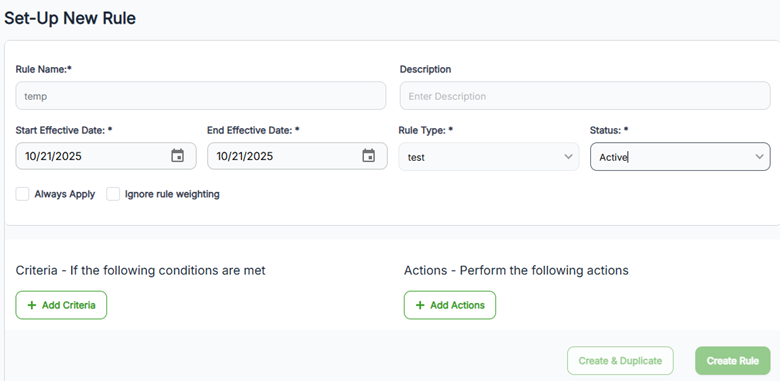
5. Click create rule
