
A: By default, NetSuite credit memos use the current date as their transaction date, regardless of whether the credit memo references the original invoice. This can create a tax calculation mismatch if the original invoice is from a prior period with different rates.
To preserve historical accuracy, the date field can be manually updated to match the original invoice's date, ensuring historical tax rates/taxability apply correctly.
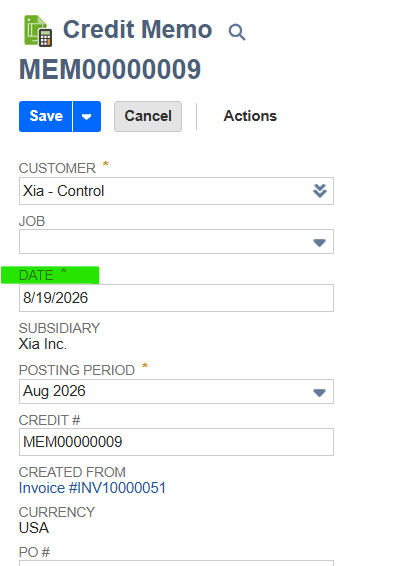
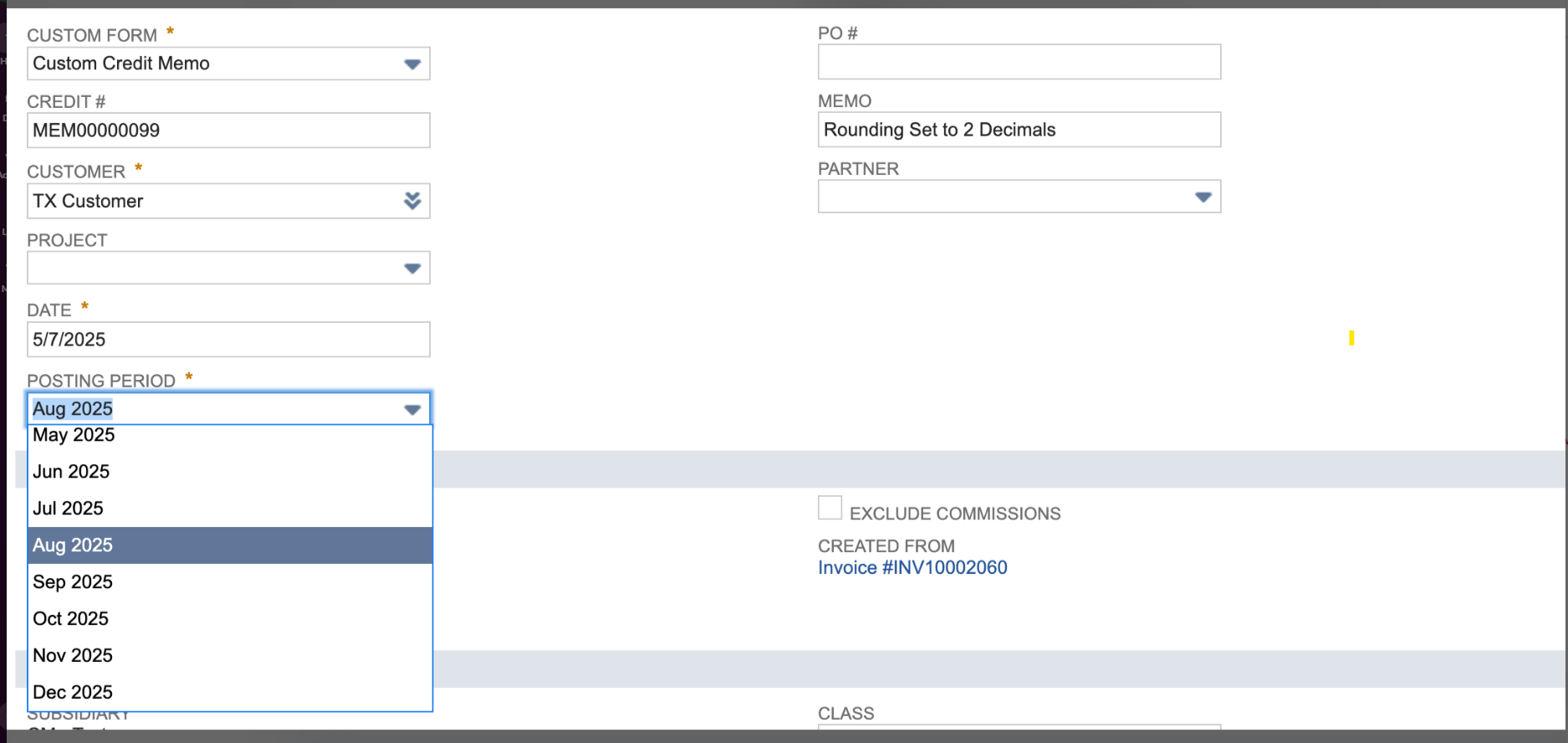
Alternatively, if you want the credit memo to appear on current-period reporting, you can update the Posting Period field to reflect the current period instead.
Note: CereTax supports the default netSuite External Roles. If you have custom roles, you will need to add those to the allowed roles for the CT_Tax_Calculation and CT_UE_SetTaxValue scripts.

Enable multiple shipping routes
Enabling multiple shipping routes and per line tax calculation allows the CereTax integration to determine tax for each item based on it's ship-to address.
Pre-Requisite for US Nexus
After you enable Multiple Shipping Routes, the Enable Item Line Shipping box is displayed on standard transaction forms.
To enable the multiple shipping routes feature:
Add multiple shipping routes on a transaction:
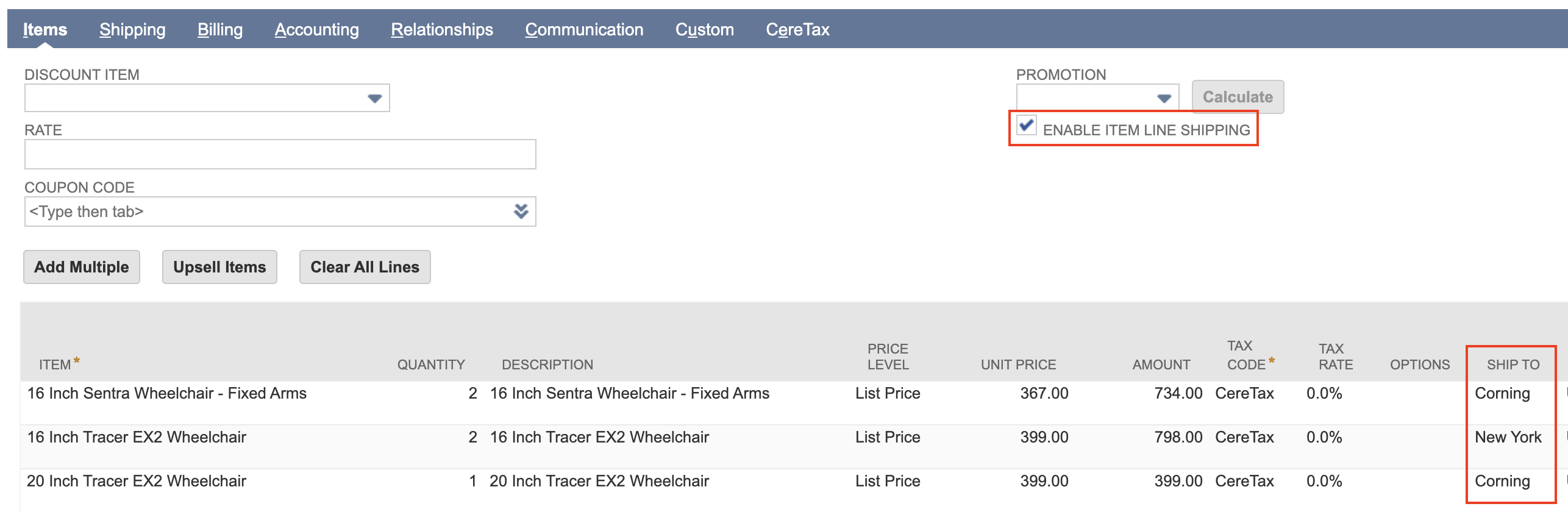
Note: If multiple lines have the same Ship-To address NetSuite will aggregate the shipping total amount and allocate it to total for the first line, not distribute it across the lines. For example, if you have 3 lines where lines 1 and 3 are to Destination A and Line 2 is Designation B, then the shipping total for Destination A will apply to Line 1.
When you install or upgrade CereTax for NetSuite, validation fails with one or more messages like:
Validation Failed: Validation of account settings failed.
An object with script ID custtab_ct_entity_ceretax already exists.
An object with script ID custtab_ct_item_ceretax already exists.
An object with script ID custtab_ct_logs already exists.
An object with script ID custtab_ct_tax_details already exists.
An object with script ID custtab_ct_tran_ceretax already exists.
CereTax adds a set of custom subtabs to NetSuite. If CereTax was installed in your account before and later removed, NetSuite does not always delete those custom subtabs during the uninstall. When you install or upgrade again, NetSuite sees the leftover subtabs and stops the install because objects with the same IDs already exist. This only affects accounts where CereTax was previously installed and removed — it does not happen on a true first-time install.
You'll remove the leftover CereTax subtabs, then run the install/upgrade again. You must delete every subtab listed in your error message — removing only one will not clear the error. All five possible subtabs are listed below.
No, address validation is only supported for US addresses at this time. Addresses from other CereTax-supported countries, like Canada, can still be used to calculate tax, but cannot be validated using the CereTax SuiteApp. CereTax will return an error in NetSuite when it cannot determine the location of the transaction based on the address inputs provided.
To validate an address, the existing address record must have a street address and postal code, or a street address, city, and state.
If you attempt to validate an address and CereTax cannot validate it against the USPS database, the address will be flagged as invalid. When this occurs, we recommend reviewing the Address 1 field in NetSuite and making sure it includes an actual street address and no supplemental information, like addressee. The street address field should only include the street address and any applicable building, unit, suite, or apartment number. If no changes are required to the Address 1 field, the address should be verified with the address owner.
No, when an invoice is deleted or voided in NetSuite it will be automatically reversed and suspended in CereTax. When you view a deleted or voided invoice in CereTax it will have a status of "Suspended"
The shipping address is the default address used to calculate tax. If a shipping address is not available on a transaction, the billing address will be used.
No, the CereTax SuiteApp is configured to trigger tax calculation for orders and invoices created through the UI or NetSuite's API.